
Where Should Shopify Size Charts Appear on Mobile?
Find the best Shopify mobile size chart placement. Compare inline links and floating buttons, improve size selection, and set up mobile size guides with Lavar.

A shopper finds a jacket they like on their phone, selects a color, and reaches the size options. They are unsure whether to choose M or L, but the size chart is hidden near the bottom of the product description.
Finding it requires scrolling past product details, delivery information, and customer reviews. By the time the shopper reaches the measurements, they may have lost their place in the buying process.
A well-positioned Shopify mobile size chart helps shoppers check measurements at the moment they need them, without leaving the product page or losing access to the size selector.
For most fashion product pages, the best starting position is an inline size-chart link beside or immediately below the size selector. A floating button can work when merchants need sizing guidance to remain accessible while customers scroll. The better choice depends on the theme layout, mobile screen space, and how customers interact with product options.

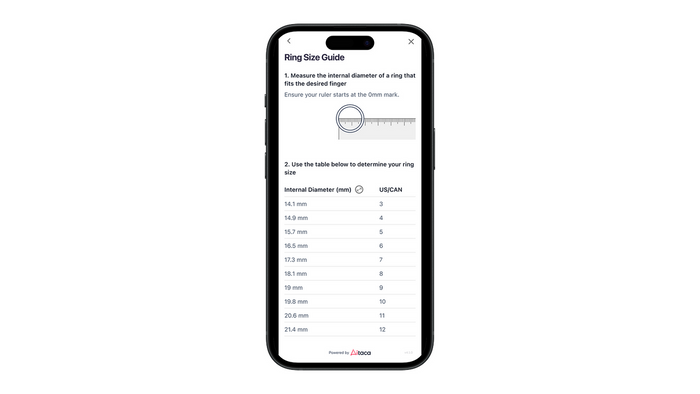
Image source: Shopify Community — Product Page Size Chart Example.
Why Size Chart Placement Matters on Mobile
Mobile shoppers have limited screen space, making the relationship between size selection and measurement guidance especially important.
Size uncertainty happens before Add to Cart
For clothing and footwear, choosing a variant is not always a straightforward decision.
Customers may know their usual size but still need to check whether a product runs small, has an oversized silhouette, or uses a different measurement system.
Consider a customer buying running shorts. They might need to compare waist and hip measurements before selecting between two adjacent sizes.
If the size chart appears beside the selector, the shopper can review the relevant measurements and immediately return to their choice.
When the chart is hidden elsewhere, the shopper must interrupt that decision.
Long product pages create unnecessary searching
Mobile product pages often contain product photography, variant selectors, descriptions, reviews, shipping policies, recommendations, and other information.
Placing the size chart at the end of this content makes it difficult to discover when the shopper actually needs it.
Even if the chart is complete and accurate, its practical value decreases when customers cannot find it easily.
For that reason, merchants should evaluate size-chart discoverability separately from the quality of the measurements.
Returning to the size selector should be easy
Finding the size chart is only the first part of the interaction.
After reviewing measurements, shoppers still need to select a size and continue purchasing.
A useful mobile experience keeps that journey short:
- Shopper identifies uncertainty about size.
- Shopper opens the size guide.
- Shopper compares measurements and fit notes.
- Shopper returns to the size selector.
- Shopper selects a variant and continues shopping.
A size chart that sends customers to another page without an easy return path can introduce unnecessary friction.
The Best Places to Show a Size Chart on Mobile
The strongest placement usually puts sizing guidance close to the relevant product decision without competing with important purchase controls.
Beside the size selector
Placing a small "Size Guide" or "Size Chart" link beside the size selector creates a direct connection between choosing a variant and checking measurements.
This works particularly well for product pages where the size selector has its own heading, such as:
Size: S M L XL — Size Guide
The link should be visually distinguishable from the size options so customers do not mistake it for another variant.
On narrow screens, however, placing too many elements in one horizontal row can create crowded or wrapping layouts.
If the selector already includes multiple controls, placing the link immediately below it may be clearer.
Immediately below the size selector
An inline link below the size options gives the guide its own space while keeping it within the same decision area.
This is often a practical layout when products have both color and size selectors.
For example:
- Color selector.
- Size selector.
- Size Guide link.
- Quantity or Add to Cart controls.
The main advantage is predictability. Shoppers encounter the guide where they are already choosing a size.
Merchants should still check whether other promotional widgets or payment messages push the link away from the selector.
Above the Add to Cart button
Some themes make it difficult to position content directly beside the size selector.
In these cases, placing the size guide immediately above Add to Cart can be a reasonable alternative.
The guide remains visible before the shopper commits to the selected variant.
However, it should not separate the selector and purchase button with a large graphic or full measurement table unless the layout genuinely requires it.
As a floating button
A floating size-chart button can remain accessible as customers scroll through the product page.
This is useful when a product has a long description or multiple fit-related information sections.
But a floating control also occupies mobile screen space.
Before using one, check whether it overlaps the cart drawer trigger, chat support widget, sticky Add to Cart bar, or other important controls.
Inline vs. Floating Size Charts: Which Is Better?
Inline links and floating buttons provide different types of accessibility, so the right choice depends on the product page and shopper behavior.
| Criteria | Inline Size Chart | Floating Button |
|---|---|---|
| Placement | Positioned within the product page layout. | Appears as a persistent floating control. |
| Best use case | Size guidance at the point of variant selection. | Access to guidance while scrolling. |
| Discoverability | Strong when placed near the size selector. | Potentially accessible throughout the page. |
| Screen space | Uses space within the normal page flow. | Occupies overlay space. |
| Main UX risk | May be missed if positioned too far down. | May overlap other mobile controls. |
| Recommended starting point | Most standard fashion product pages. | Long pages requiring persistent access. |
Choose inline for straightforward purchase flows
For a store selling T-shirts, dresses, jeans, or footwear, an inline link close to the size selector is usually the clearest starting point.
It appears at the moment customers are deciding which option to select.
It also preserves the familiar structure of a product page, rather than introducing another persistent interface element.
Choose floating for longer product pages
A floating button may be more suitable when customers frequently move between product details, measurements, and fit information.
For example, a technical outdoor clothing product page might contain fabric specifications, layered fit recommendations, and activity-specific guidance.
Keeping the chart accessible during scrolling could be useful in this context.
However, the button should remain unobtrusive, clearly labeled, and easy to dismiss or open.
Avoid showing duplicate controls without a reason
Having both an inline link and floating button does not automatically improve the user experience.
Two controls leading to the same size chart can create unnecessary visual clutter, especially on smaller screens.
Use a combination only when testing shows that customers genuinely benefit from both access points.
Otherwise, prioritize a single clear entry point.

Image source: Shopify Community — Size Chart Popup Example.
How to Make Size Charts Easy to Read on Small Screens
Correct placement solves discoverability, but the measurement content must also remain understandable on mobile.
Prioritize relevant measurements
A size chart should focus on measurements that help the customer make a decision.
For example, a pair of jeans may need waist, hip, inseam, and fit information, while a T-shirt may emphasize chest width, body length, and shoulder measurements.
Avoid placing every possible measurement into a single wide table when only a few columns affect size selection.
If additional information is needed, use clear labels or separate sections rather than forcing the customer to interpret a crowded table.
Separate body and garment measurements
Customers can misunderstand measurements when the chart does not explain what is being measured.
Body chest circumference and garment chest width are not interchangeable.
For example, a garment measured flat across the chest may list a width of 54 cm, but that does not mean it is intended for a body circumference of 54 cm.
Label each measurement clearly, explain the measuring method, and provide fit guidance when supported by actual product information.
Make unit selection understandable
International shoppers may prefer centimeters or inches depending on their location and familiarity with measurement systems.
If both are provided, label the units clearly and make sure the converted values remain accurate.
For wider size charts, consider whether the layout supports horizontal scrolling without hiding the relationship between sizes and measurement columns.
Refer to Lavar's international size chart guide for further guidance on regional sizing and measurement units.
Keep popup interactions mobile-friendly
If a link opens a popup, test how the content appears on smaller screens.
The popup should make it easy to:
- Read the size labels and measurement values.
- Scroll within longer content.
- Close the guide without losing context.
- Return to the selected product options.
- Interact with the guide without accidental background clicks.
A large popup that covers the page and has a difficult-to-find close control can create a new usability problem.
How to Position Mobile Size Charts With Lavar
Lavar provides size-chart creation and storefront placement tools that merchants can use to keep product-specific measurement guidance accessible.
According to the official Lavar Help Center, the app supports inline size-chart links through the Shopify Theme Editor and floating size-chart buttons on product pages.
Merchants can also customize size-chart content, assign guides to relevant products, and adjust supported appearance settings.
Step 1: Create the relevant size chart
Open Lavar in Shopify Admin and navigate to Store Optimizations → Size Chart.
Select Add Size Chart and choose an appropriate template for the product category.
According to Lavar's setup documentation, merchants can edit table cells, add rows and columns, insert images or links, and customize fonts and colors.
Use measurements taken from the actual products or approved production specifications rather than copying generic size tables.
Step 2: Assign the chart to relevant products
Different product categories may require different sizing guides.
Lavar allows merchants to assign charts to selected products and filter assignments through collections or product tags.
For example, a fashion merchant could maintain different guides for fitted dresses, relaxed T-shirts, jeans, and outerwear.
This helps prevent customers from seeing irrelevant measurements on a product page.
Step 3: Configure the inline link
To display an inline size-chart link, use Lavar's Add widget option to open the Shopify Theme Editor.
Add the Lavar size-chart app block and move it to the intended position within the product page layout.
For mobile fashion pages, start by placing it close to the size selector where the theme structure permits.
Save the theme changes, then return to Lavar and use Verify Now to confirm that the app block was added correctly.
The precise available position depends on the Shopify theme and its supported block layout.
Step 4: Configure the floating button if needed
Lavar also offers a floating button that displays automatically on product pages.
This option can be useful if the inline size guide becomes difficult to access after customers scroll down a long product page.
Review the button's appearance settings and test how it interacts with other mobile overlays.
Merchants should verify its actual position in the published theme instead of assuming a floating button will automatically avoid every other widget.
Step 5: Test the published product page
After configuring the guide, open a product page on a real mobile device.
Confirm that the correct size chart appears, the entry point is visible, the measurements are readable, and customers can return to the size selector easily.
Repeat the test with multiple products that use different size-chart assignments.

How to Test Size Chart Placement on Mobile
Placement decisions should be evaluated using actual mobile interactions rather than relying only on what looks balanced in the Theme Editor.
Test discoverability before measuring conversions
Start by checking whether shoppers can find the size chart without instructions.
A simple usability test can ask participants to choose a size for an unfamiliar product and explain how they reached their decision.
Observe whether they notice the size guide, how easily they open it, and whether they can return to the size selector.
If customers repeatedly search through the description or reviews, the chart may not be placed prominently enough.
Compare inline and floating placements
When feasible, compare two configurations while keeping the rest of the product page consistent.
| Test Element | Version A | Version B |
|---|---|---|
| Size guide entry | Inline link below the size selector. | Floating size guide button. |
| Chart content | Same measurements. | Same measurements. |
| Product | Same product. | Same product. |
| Primary goal | Easy access at size selection. | Easy access throughout scrolling. |
| UX risks to inspect | Link overlooked or pushed below the fold. | Button overlaps sticky elements. |
Track guide usage where measurement is available, and combine it with broader product-page behavior.
A higher size-chart opening rate is not necessarily proof of improvement. It could also indicate that customers are more confused about sizing.
Review add-to-cart behavior and sizing questions
Useful indicators may include:
- Size-chart interaction rate, when tracking is available.
- Time needed to locate sizing information during usability tests.
- Add-to-cart rate for size-dependent products.
- Customer support questions about fit and measurements.
- Returns attributed to sizing issues, when reliable reason data is available.
Consider the wider buying experience instead of evaluating one metric in isolation.
Test several screen sizes
A placement that works on a large smartphone may cause issues on a narrow screen.
Check both compact and larger mobile viewports, including devices with different browser controls and safe areas.
Pay particular attention to floating elements near the bottom of the screen, where sticky purchase bars and chat widgets often appear.
Also verify that the layout still works when size labels, product names, or translated text become longer.

Mobile Size Chart Placement Checklist
Before publishing, confirm that shoppers can discover, read, and use sizing guidance without disrupting their purchase journey.
- Place the guide near the decision: Start with an inline link beside or below the size selector.
- Check the mobile layout: Make sure the link remains visible without crowding variant options.
- Evaluate floating controls: Ensure they do not cover Add to Cart, chat, or navigation elements.
- Use relevant measurements: Include dimensions that genuinely help customers choose a size.
- Explain measurement types: Separate body measurements from garment measurements.
- Keep units clear: Label centimeters and inches accurately when both are used.
- Assign the correct chart: Match the guide to the product's actual fit and measurement system.
- Check popup behavior: Ensure shoppers can open, read, close, and return to the product options.
- Test mobile devices: Review compact screens, larger phones, and different browser conditions.
- Review customer behavior: Use usability feedback and reliable store metrics to refine placement.
Recheck the experience after theme changes, installation of new storefront widgets, or updates to the product-page purchase controls.
Final Thoughts
The best Shopify mobile size chart placement is usually close to the size selector, where shoppers can compare measurements before choosing a variant. Inline links are a strong starting point for straightforward fashion product pages, while floating buttons can help on longer pages when they do not obstruct other controls. Lavar supports both display approaches and product-specific size charts, allowing merchants to build a placement strategy around their theme and catalog. Whatever option you choose, prioritize discoverability, readable measurements, and a quick return to the buying process.
FAQ
Where should a size chart appear on a Shopify mobile product page?
Beside or immediately below the size selector is a practical starting point because shoppers can access measurements during the size-selection decision. Test the position within your specific mobile theme.
Is an inline size chart better than a floating button?
An inline link is generally clearer for straightforward product pages, while a floating button can keep sizing guidance accessible during scrolling. Neither option is universally better, so test discoverability and potential screen overlap.
Can Lavar display different size charts on different Shopify products?
Yes. Lavar supports assigning size charts to individual products and filtering assignments by collection or product tag, allowing merchants to use guides appropriate to different fits and categories.
Read More

